
Whether you are settling into the new semester or tweaking course shells on the fly, our team has a few quick Blackboard updates to save you time and smooth out the student experience.
Here is what is live, what is coming this week, and a quick checklist item for your Fall 2026 courses.
1. Duplicate Items on the Course Content Page
Status: Live in Blackboard
Instructors can now duplicate most items directly on the Course Content page—no more rebuilding items from scratch.
How to do it:
- Open your course and go to the Course Content page.
- Click the More options (…) menu next to the item.
- Select Duplicate.

Note: The copy lands directly below the original with “Copy” added to the title. It remains hidden from students by default so you can edit settings before making it visible.
Duplicate Items on the Course Content Page
2. Restrict Accepted File Types for Assignment
Status: Arriving September 3 NOTE: This update is delayed until October 1.
Prevent unreadable file submissions before grading starts. Beginning September 3 October 1, instructors can restrict assignment uploads to specific file formats by choosing from a standard list (e.g., .pdf, .docx) or adding custom extensions.
- Student View: Allowed file types display on the submission page.
- Built-in Error Handling: Blackboard blocks unapproved formats instantly if a student attempts to upload them.
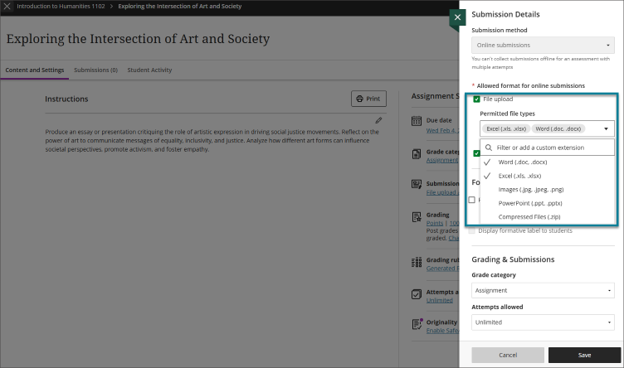
Restrict Accepted File Types for Assignment Submissions
3. Kortext Digital Textbooks Checklist
Status: Available in all Fall 2026 course shells
A guide entitled, “Accessing Your Digital Textbooks and Courseware (Kortext) has been pre-loaded in all Fall 2026 course shells. Your next steps depend on your required course materials:
- Using Publisher Access Codes (Pearson, McGraw-Hill, Cengage, etc.): Toggle the Kortext guide to “Visible to students.”
- Using Physical Textbooks or OER Materials: Leave the link hidden.

Accessing Your Digital Textbooks and Courseware (Kortext)
4. Testing Center LTI Expanded
Status: Live in Blackboard
The Testing Center LTI, previously only used by faculty to schedule exam details, is now available for students. With the LTI, students can schedule proctored exam appointments directly within Blackboard, while student rosters, accommodations, and tracking auto-sync in real time via your Testing Center dashboard.
Using the Testing Center Tool in Blackboard
Need Assistance?
Whether you need help configuring these new features or just want to bounce around ideas for your courses, the Learning Technologies team is here to help you get the semester off to a great start.
Reach out to us anytime:
- Call: 630.942.2490
- Email: learningtech@cod.edu
- Drop In: BIC 3401
Have a fantastic term!
Tim
