

When you want to grade an assignment, by default, Ultra will list your submissions in alphabetical order. But what if you wanted a different order? For instance, I prefer grading in chronological order: the oldest submissions get graded first.
Ultra gives you four different ordering options for your grading queue. If you haven’t dug them up yet, follow along.
First, get into your gradebook.
Second, click on the assignment you want to grade (you can access that from the different gradebook views).
Third, click on any student name.
Fourth, this is where you get your grading queue;
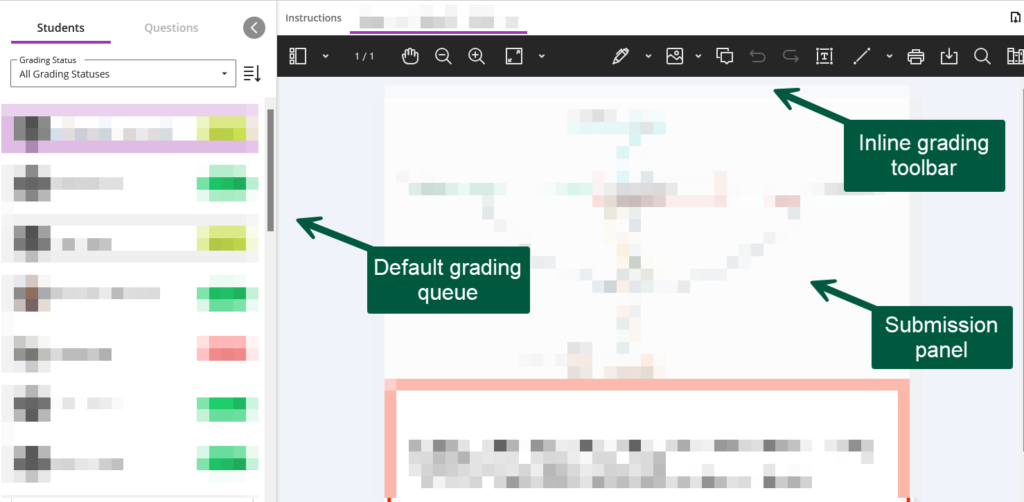
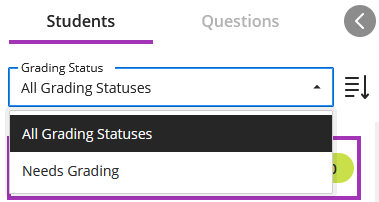
The first bit of customization you can do is filter by ungraded submissions only. This will remove the automatic zeros, the missing submissions, and the submissions you’ve already graded.
Then, the little burger with the downward pointing arrow is what you want to click on next because that is where you can reorder your grading queue.
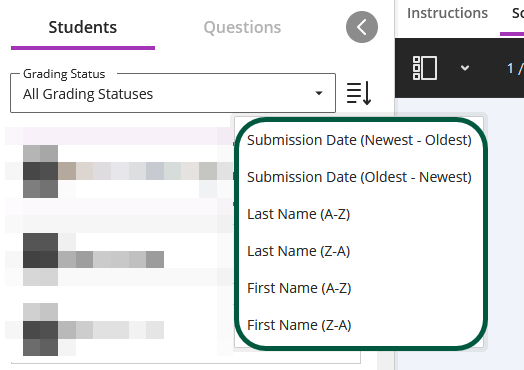
The default order is last name (A-Z) but you get several other options, including my favorite: submission date (Oldest – Newest).
Please note that this option is only available under the students tab, for both tests and assignments. If you switch to the questions view, you’re back to the default, alphabetical, ordering.
If interested, the whole documentation on grading is here, although this particular tip is not there. Call it a CM-exclusive.
