
First off, allow me to gloat for a second. I have completed the accessibility remediation of one of my course shells (see my previous blog posts on fixing my low-scoring issues and my medium-scoring issues):
Behold!
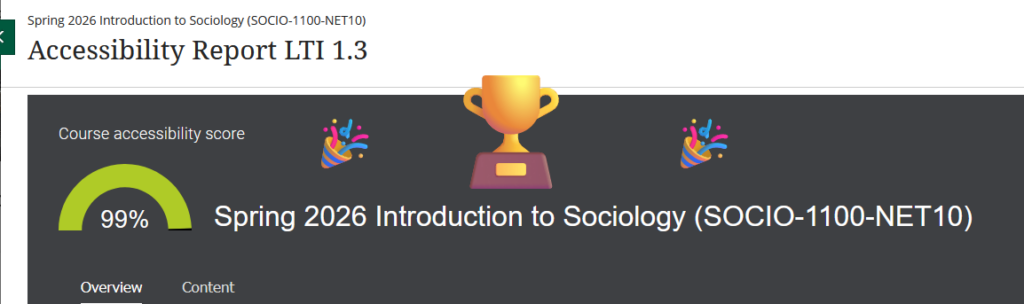
There are a couple of high-scoring items that remain but I’m happy with 99%.
However, fixing these smaller issues turned out to be, by far, the most time-consuming part of this process. I ended up recreating a few documents that I could otherwise not fix, especially some older PDF handouts. And as much as I love Canva, its exported PDFs are not accessible. I also had to fix a lot of Word documents just to use the proper styles. Ally is very picky about that.
Oh, and beware of YouTube embeds without a title in the actual HTML code. Ally will flag them and offer a fix, but that fix will just remove the video (learned that little lesson the hard way).
And as I mentioned before, fixing all these issues is an iterative process, going back-and-forth, uploading files multiple times and have Ally re-score them, until you get, if not a perfect 100%, at least close enough.
So depending on the type of content in your course, be sure to set aside some time for the remediation you might need to do.
The good news is that copying things in Ultra is super easy, so I only have to fix one course, and then copy it over multiple times. I don’t have to remedy each individual course (at least I hope not).
And whichever office productivity suite you use, be sure to run the accessibility checker and fix things as early as possible. That will save you some time later.
So join me in the 99%!
IYKYK.
Anyhoo…
Improved Ultra Navigation
As mentioned before, with SaaS, Blackboard is pushing new features all the time. There is one, in particular, that I want to highlight because it will be there when we come back from break. I’m highlighting it now so now one freaks out on day one.
If you don’t like clicking on the upper left corner X to close your open panels, rejoice!
As of now, navigation in Ultra looks like this:
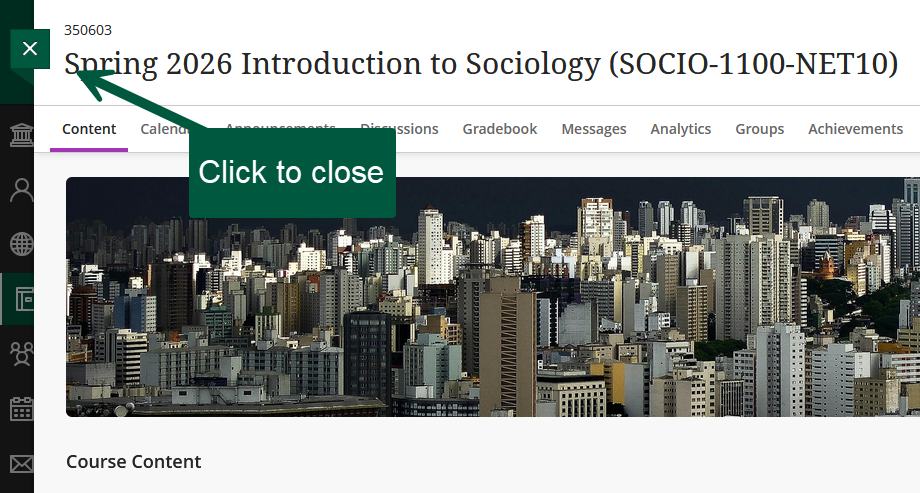
Starting in January 2026, new options should make navigation easier between courses.
It will look like this:
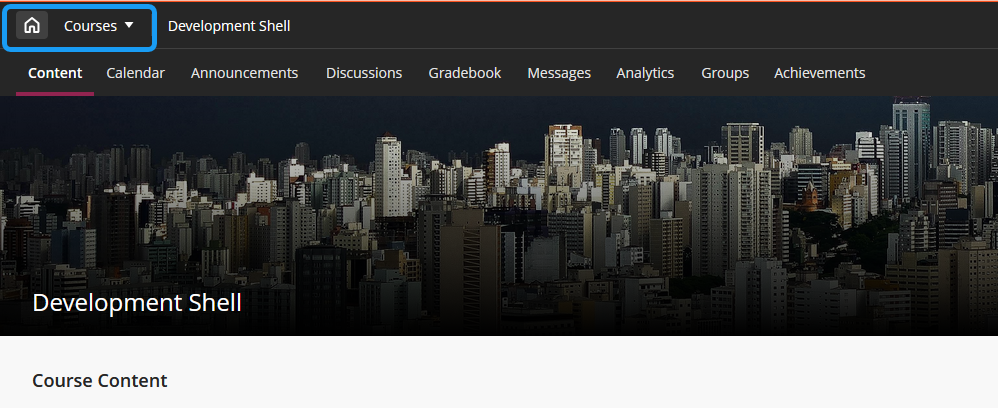
As you can see, we’re getting a home button that will take you back to your landing page. But we’re also getting a course chooser button to navigate between courses without having to go back to our home page. If you click on the Courses drop-down chooser, you get this:

This is my testing and development area, so, there aren’t a ton of courses, as there is in my regular Blackboard. That’s why the view is not super exciting.
But the point here is that you will be able to quickly navigate between the courses you use the most. View All takes you back to your main course page.
Now you know, so don’t freak out when you open Blackboard in January and things a little different.
