
If you attended my presentation at kick-off, last Thursday, you might remember I mentioned an issue with YouTube videos where the fix offered by Ally simply removed the video (so don’t do it). I thought I’d just show you more specifically what the issue is.
It looks like this:
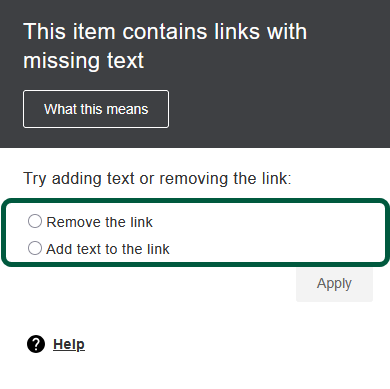
This might also happen is you post links with no title, that is, where the link is just a URL. The quick solution for a link is to select the Add text to the link, enter the text you want (which will be the text that appears in your document, so be careful what you write).
The reason becomes visible when you want to use a YouTube video in your course and embed it in Blackboard. In my view, the easiest option is to create an Ultra doc, use an html block, and just copy and paste the embed code. The code typically looks like this:
<iframe width="560" height="315" src="https://www.youtube.com/embed/2hbblF7_JHQ?si=bQazgFAQcyHuVIdR" title="YouTube video player" frameborder="0" allow="accelerometer; autoplay; clipboard-write; encrypted-media; gyroscope; picture-in-picture; web-share" referrerpolicy="strict-origin-when-cross-origin" allowfullscreen></iframe>The problem comes with the highlighted part of the code:

This generic title will get your video flagged by Ally, in Blackboard. Ally will tell you that the link has no title and offer to remove it. Do not accept that fix as Ally will remove the entirety of the embed code. Instead, simply type in the actual video title between the quotation marks.
Personally, I like using HTML blocks because that allows me to tweak the code and make things look exactly the way I want to. But I get that not everybody wants to bother with that.
An alternative is to use the native embed tool in Blackboard.
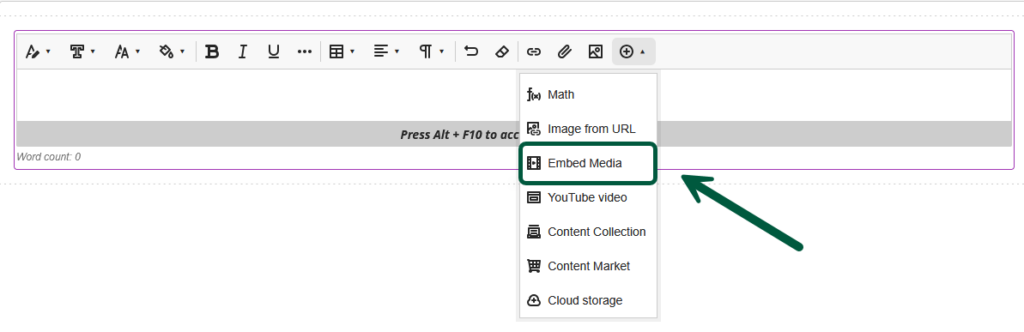
As above, you start with an Ultra doc. But instead of choosing the HTML option, you just choose content, as below:

Once in the content interface, you would select Embed media (NOT YouTube video):
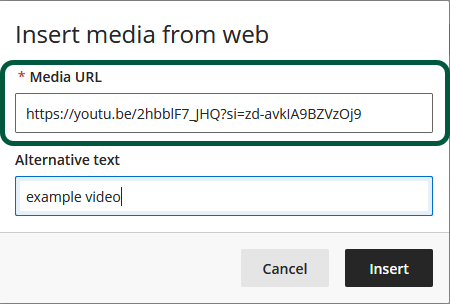
When prompted, you would enter the video URL and a description:
Your video will display nicely in your Ultra document, with no issue and a 100% accessibility score (despite the captions gripe from Ally);
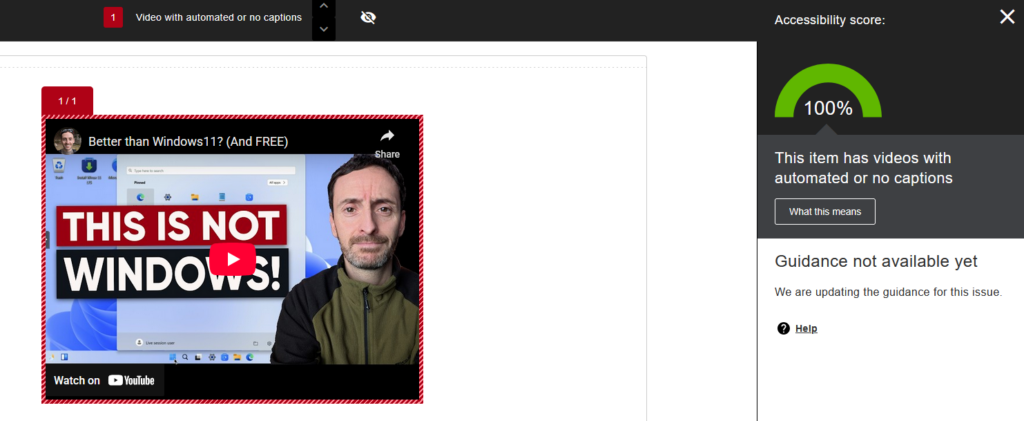
I should note that Ally is not super consistent in its scoring on this issue. So you might get lucky and Ally won’t notice the generic title issue. But at other times, it might. Better be ready and use either options I’ve outlined here. It’s quick and painless.
And yes, I used one of millions of “switch to Linux” videos available on YouTube because I switched my home computer to Linux last Fall, in my never-ending struggle to prevent AI slop, bloatware, spyware, and any and all poopware (that’s a word) from invading my life. And Linux has made everything SO MUCH better. And the switch was easy, even for a non-techie newbie like me. Ask me about it.
